

Components are the building blocks of a status page. Each one has its own status and its own 90-day uptime bar. Choose them well and customers see at a glance whether a problem affects them.
Think like a customer
List the things your customers would say they use, not the names of your servers or internal systems. "Website", "Online booking" and "Payments" mean something to a customer. "db-cluster-2" does not.
Not too many, not too few
- One component for everything tells customers nothing.
- Fifty components is hard to read and hard to keep up to date.
- A handful to a dozen suits most businesses.
- There is no limit, so you can add more later as you learn what customers ask about.
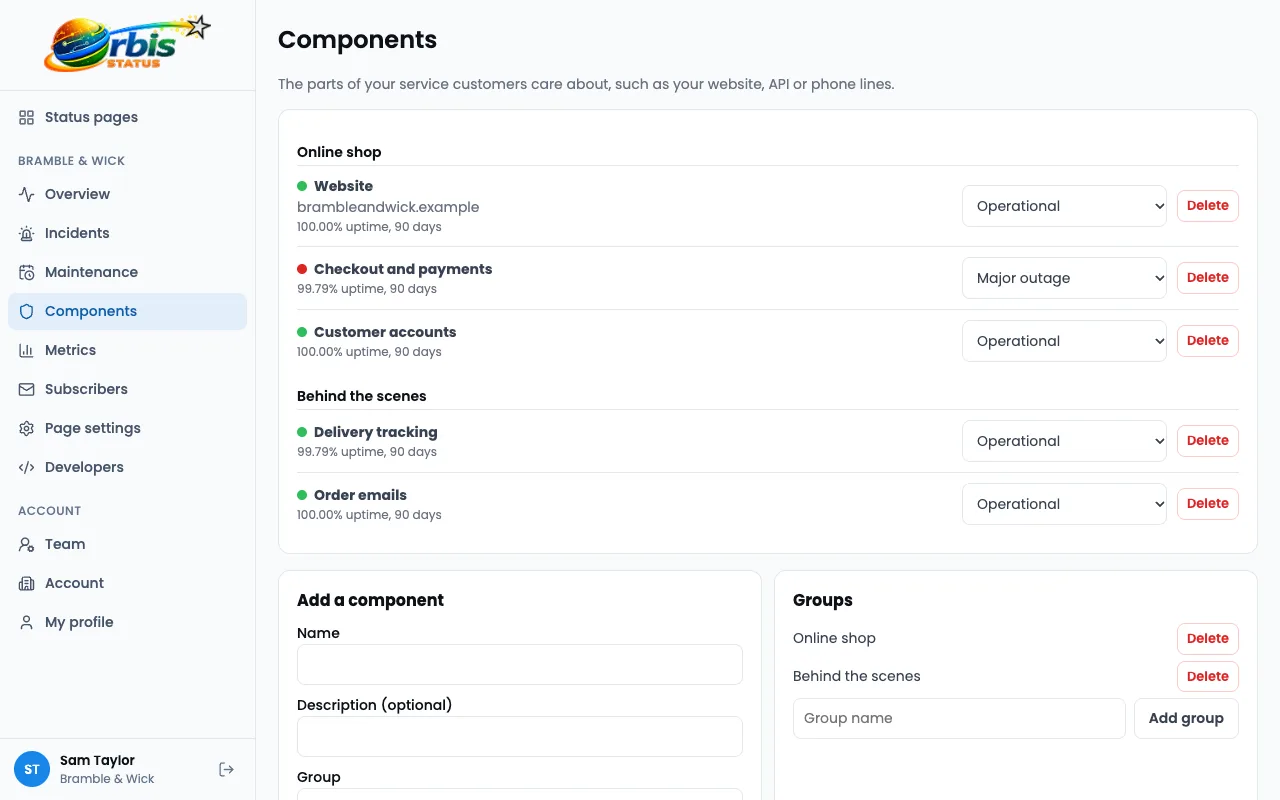
Use groups
If you have lots of components, put them into groups, such as Website, Mobile app and Payments. Groups keep the page tidy.
Know the five statuses
- Operational: working as normal.
- Degraded performance: working, but slowly.
- Partial outage: some customers or features are affected.
- Major outage: not working.
- Under maintenance: planned work is under way.
How the uptime bars work
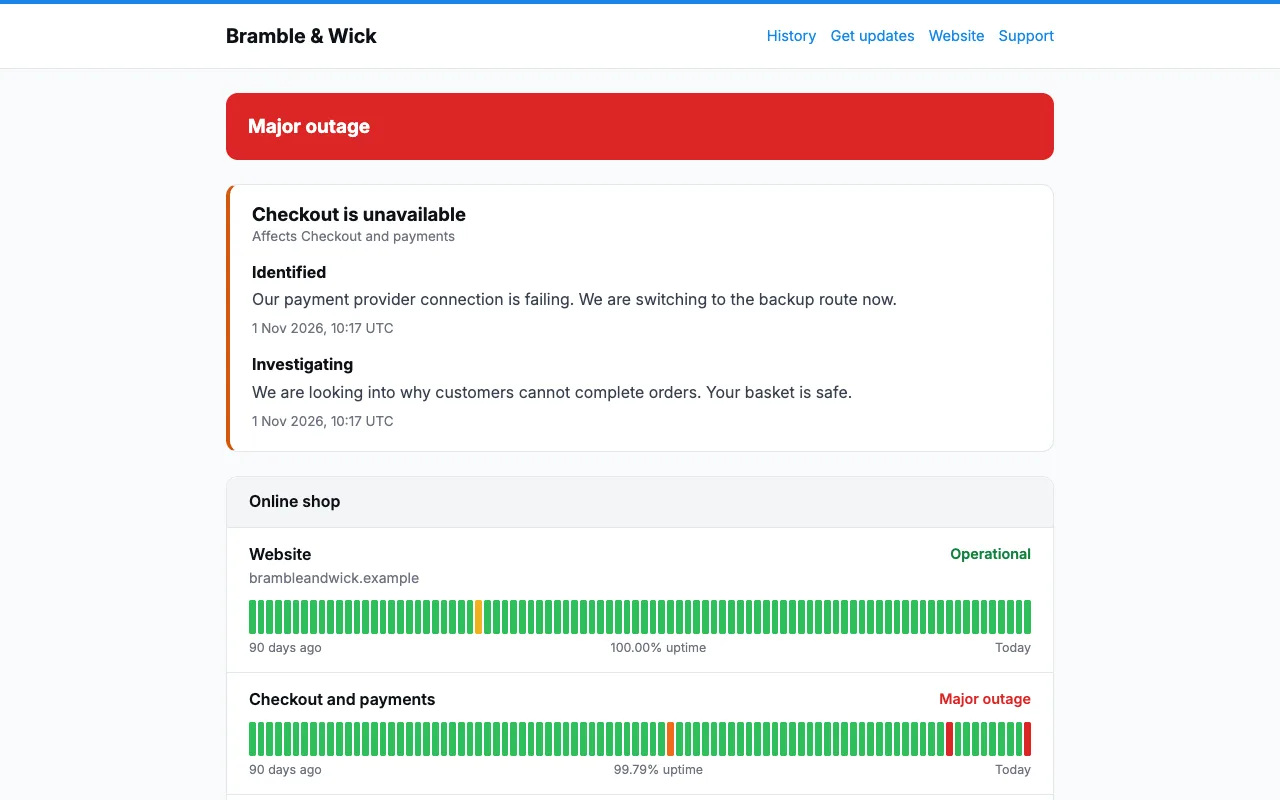
Uptime is worked out from the status history over 90 days. A major outage counts as fully down and a partial outage as 30% down. Degraded performance and maintenance do not count as down. Because the page is only as accurate as the statuses you set, keep them honest.
Review it now and then
When you launch a new feature or retire an old one, update your list. Check after each incident whether the components helped customers to understand what was going on. Read how to write an incident update.
Try Orbis Status for free
- Free subdomain or domain
- Email, Slack and Teams updates
- No card required
Frequently asked questions
How many components can I add?
Paid plans have no components limit. The Free plan allows up to 25 components.
Can I rename or regroup components later?
Yes. You can change your components in the dashboard at any time.