

A status page tells your customers when something is wrong, what you are doing about it, and when it is fixed. Setting one up takes a few minutes. This guide covers the steps, and what to check before you tell customers about it.
Step 1: create your account
Sign up at Orbis Status and create your first status page. The Free plan has no card to enter, and you can have as many status pages as you need, each on its own plan. See how free pricing works.
Step 2: verify your email
We email you a link, from noreply@orbisstatus.co.uk. Your status page does not go live until you click it, so check your spam folder if you cannot see the email.
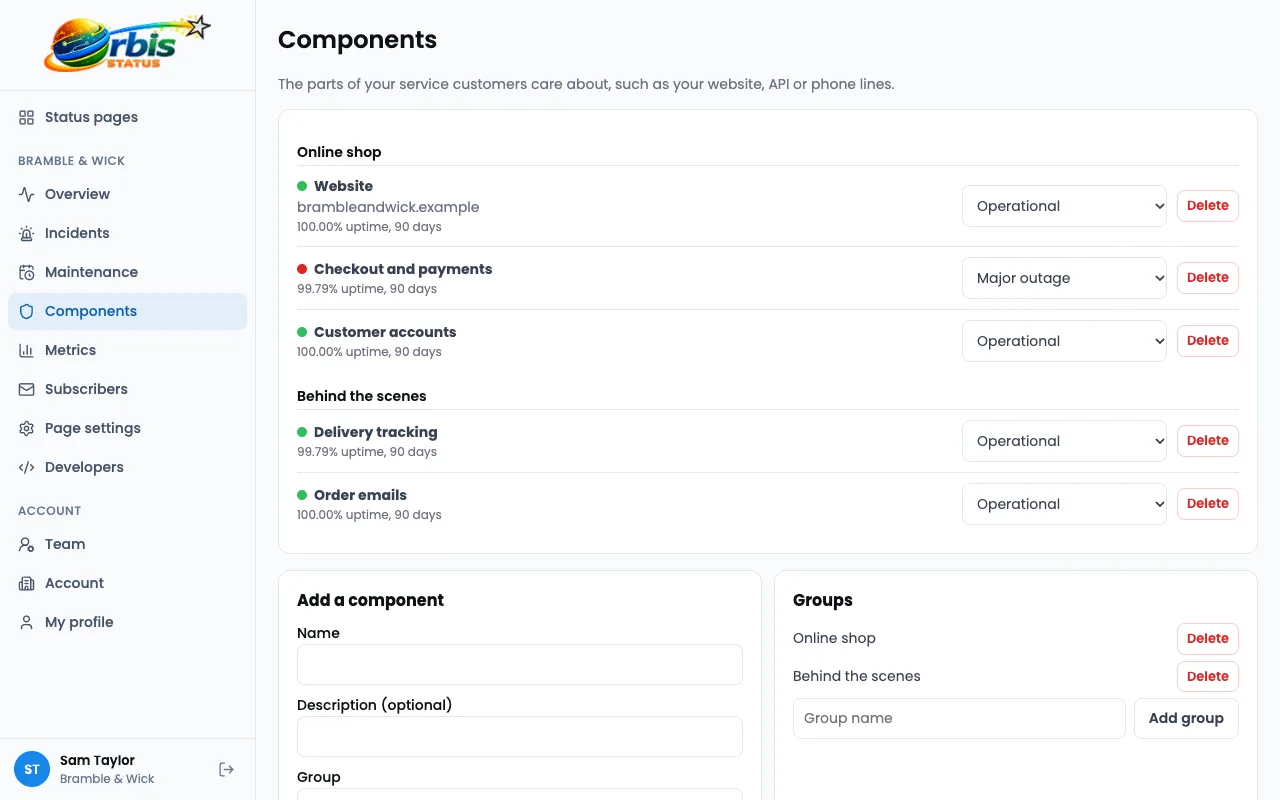
Step 3: add your components
Components are the parts of your service that customers care about, such as your website, your app or your payments. Add each one, and put related ones into groups if that makes the page easier to read. Read how to choose components.
Step 4: make it look like yours
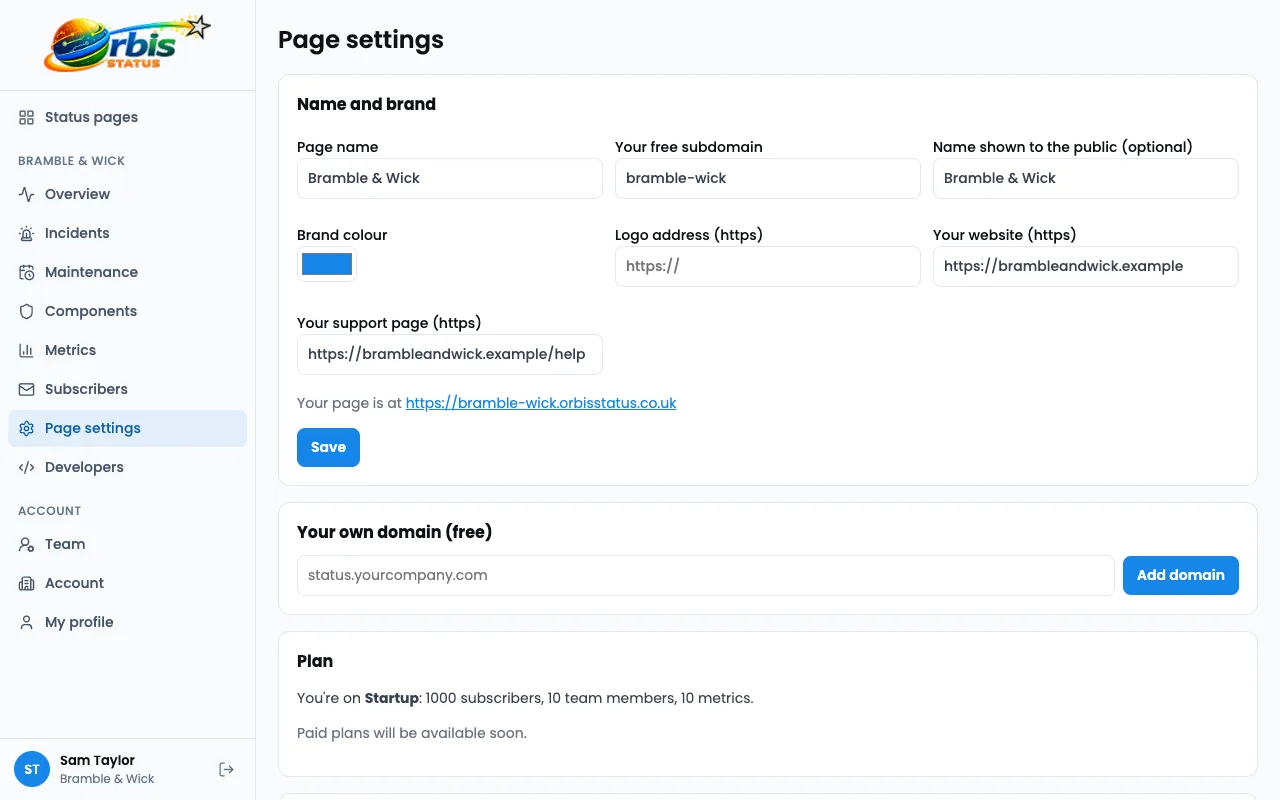
In the page settings, add your logo, choose your brand colour and add links back to your website or support page. Your page is published at your-name.orbisstatus.co.uk, and you can use your own domain later.
Step 5: check the public page
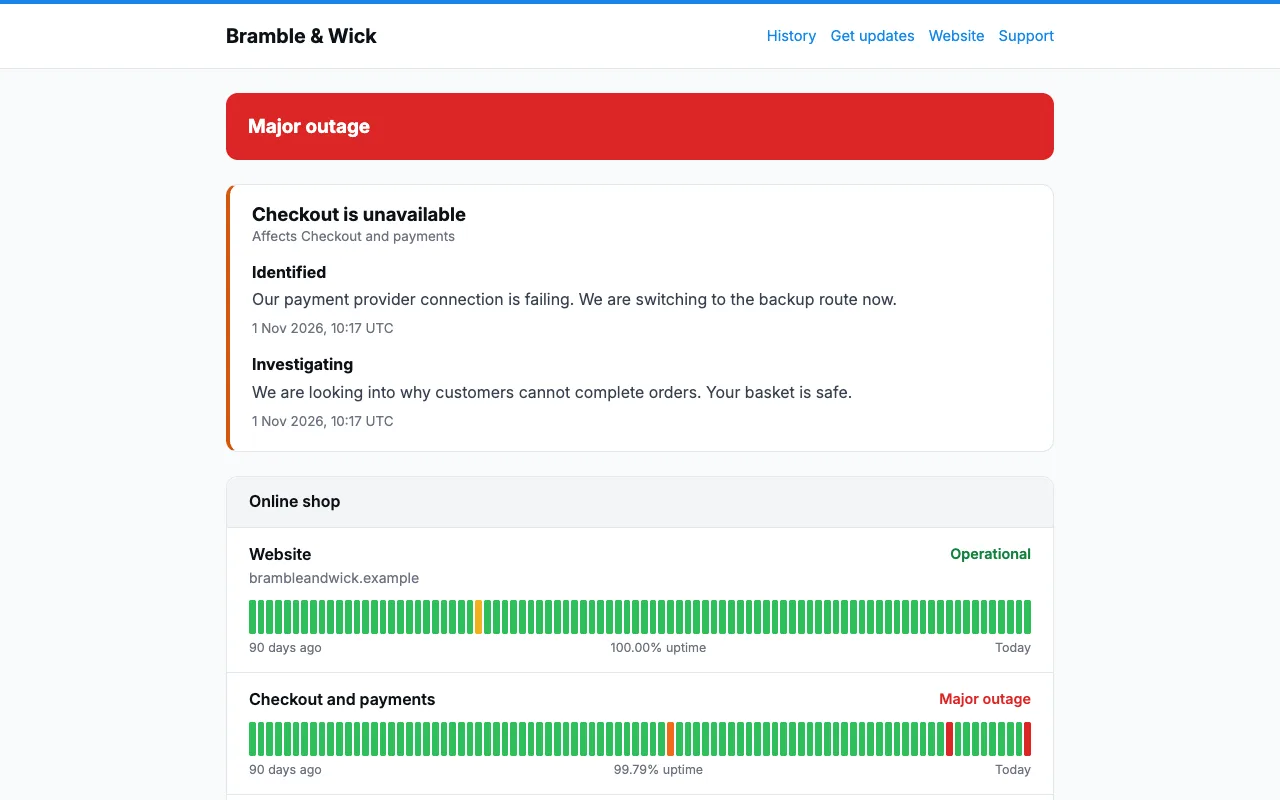
- Open your public page in a private browser window.
- Check that every component shows Operational.
- Check your logo, colour and links.
- Ask a colleague to look at it on their phone.
Remember that you update it
Orbis Status does not check your systems for you. When something goes wrong, your team posts an incident, or your own monitoring tool updates the page through the API. Decide now who is responsible for that. Read how to write an incident update.
What to set up next
Invite your team, save a few incident templates for common problems, and tell customers they can subscribe by email. Then link to the page from your website and your support emails.
Try Orbis Status for free
- Free subdomain or domain
- Email, Slack and Teams updates
- No card required
Frequently asked questions
Do I need a developer?
No. You can create and run a status page from your browser. A developer is only needed if you want to connect your own monitoring tool through the API.
Does Orbis Status monitor my website?
No. It does not check your systems. Your team, or your own monitoring tool using the API or webhooks, updates the page.